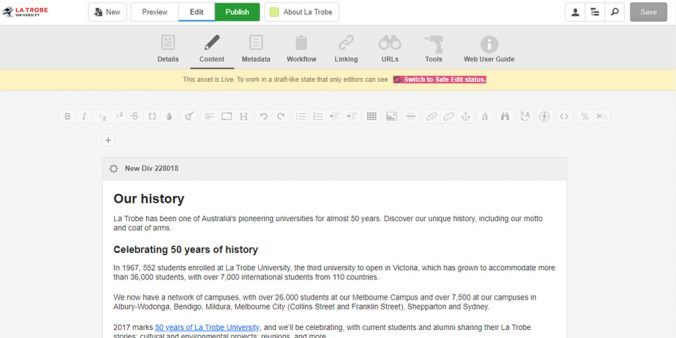
Our content management system (CMS) is Squiz Matrix. It’s a unified platform used to develop, present and manage data on La Trobe’s website. This cloud-based platform helps us present and organise content that is responsive, searchable and engaging.
Our CMS provides a simple editing interface. This allows web editors to edit and update content in a way that is similar to a Word document. Editors can make changes to site pages which are then published and presented on the live website.
Our editing interface
When logged into the CMS there are six common tabs on the CMS editing screen.
Details
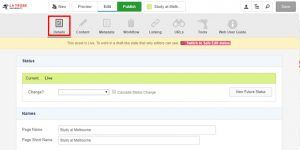
The details tab allows you to change the:
- asset status (safe edit, make live and approve changes)
- related image for the page.
This tab will be crucial when changing the status of your asset from ‘Safe Edit’ to ‘Approve and Make Live’.
Content
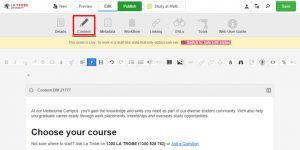
Our CMS is a visual editor known as a WYSIWYG editor-what you see is what you get. Just like a Word document editor, the content tab allows you to edit content as you would see it presented. There are various tools available to help you edit and format your content.
Helpful tools:
- sweep tool (cleans up all of the styling)
- headings (applies the Header markup to the text)
- the undo/ redo tools
- ordered list/ unordered List
- linking tools (allows you to hyperlink to other pages or documents)
- toggle source code (allows you to view the source code of the page)
Learn more about these editing tools.
Metadata
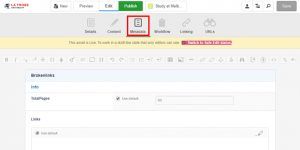
The Metadata tab allows you to edit the metadata values for your page. This information is most relevant to search engines. The page description will appear in search engine results and when used as a subpage. Your page can’t be published without a meta description.
Information we can change
- page description
- related keywords
Workflow
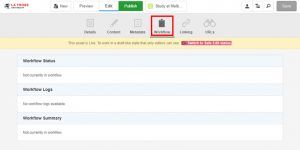
The workflow tab shows the status of the page. You will be able to find messages of when and who has made the changes on the page.
Tools
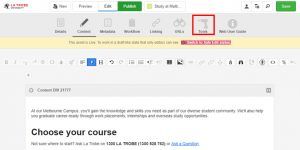
The tools section allows you to access more advanced tools within the CMS. This area is more directed to site administrators. If you’d like to learn more about Tools, submit a Digital Marketing Request.
Additional tools you’ll see
Asset finder
The asset finder allows you to find assets within your site. This tool allows you to find, view and edit assets.
Search
Looking for an asset in the CMS? The search tool will help you find what you’re looking for whether it be through Asset ID or search term.
Have questions about your web editing?
Remember, we’re always here to help! To reach out, please: