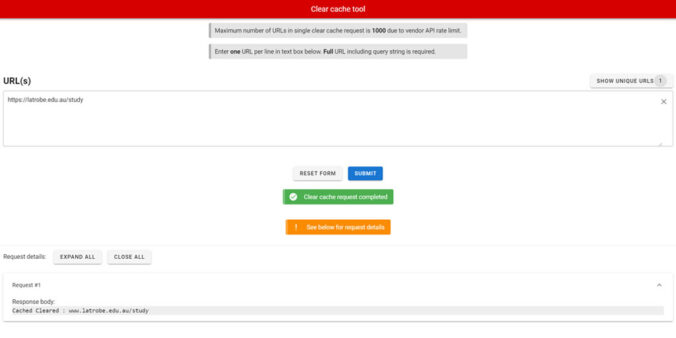
Caching is the process of storing a copy of a file in a temporary local location of the browser you are using. A cache is the location in which these files are stored.
Caching improves efficiency as your browsers will look for a local copy of data. This will allow for faster load speeds when accessing the same pages. Caching will reduce servers load time; which processes large amounts of data every time someone visits the page. Thus, increasing web performance and user experience.
How does a webpage become cached?
When you access a webpage for the first time, your browser will fetch and store a copy of that page you are accessing. The next time you access that page, your browser will find and display the cached copy of the webpage. This also is also true for files you have accessed along the way eg. PDFs.
When does the cache clear?
The website cache automatically clears every 24 hours. This means if you don’t manually clear the cache but publish your content, it may take up to 24 hours to come into effect.
When was your page last cached?
You can determine when your page was last cached by looking at the source of your page.
- Right click on your page
- Click ‘view source’ (you will be taken to the source code of your page)
- Find on the page (Crtl + F)
- Search for “page generated’
- You will see the timestamp from when the page was last generated. Example- Page generated: 02 October 2019 14:58:45
Clearing your browser cache
You may encounter caching issues, but not notice. Clearing the cache may not always fix the problem, but it should be the first step in your troubleshooting process.
A browser shortcut of Crtl + Shift + Delete will navigate you to the ‘clear browser data’ menu on most browsers.
In Private Browsing
Want to check the latest copy of your webpage without clearing your cache, losing your browsing history or cookies. Most browsers have a ‘private browsing’ mode. This is a temporary solution to not clearing your cache but seeing a cache-free version of your page.
Check your preferred browsers ‘private browsing’ terminology:
- Google Chrome – Incognito mode
- Mozilla Firefox – Private window
- Internet Explorer – InPrivate mode
- Safari – Private window
- Microsoft Edge – InPrivate mode
Common Issues
Sometimes you may experience caching issues which means despite publishing your new content, your page still displays the old version of content.
The cache may have failed to clear, or the page may not have been published correct. If your issues persists please let us know by submitting request.
Best Practice
- We recommend clearing the cache manually by using the ClearCache tool. This ensures your updates are available immediately.
- To preview your safe edits before publishing, you can add /_nocache at the of the URL
- When updating a file it is important to clear the cache on all the pages where this file appears.
Have questions about your web editing?
Remember, we’re always here to help! To reach out, please: